

Description
That dreaded “Storage Full” notification always shows up at the worst possible moment, right when you want to take a photo, install a new app, or download something important. If you want to know how to free up storage on Android in Pakistan, you are in the right place. This guide covers every method that actually works, from quick one-tap fixes to long-term habits that keep your phone running fast and storage under control.
Why Does Android Storage Fill Up So Fast?
Before jumping into the fixes, it helps to understand why your phone runs out of space so quickly. Android phones have two types of storage — internal and external. Internal storage is built into your phone and cannot be expanded. It fills up with apps, photos, videos, WhatsApp media, downloaded files, and cached data from every app you use.
Most budget and mid-range Android phones sold in Pakistan come with 64GB or 128GB of internal storage. That sounds like a lot, but it runs out faster than most people expect. WhatsApp alone can eat up several gigabytes within a few months because it saves every photo, video, voice note, and document that anyone sends you automatically. Add TikTok downloads, Instagram cached data, offline YouTube videos, and a few heavy apps, and your storage disappears very quickly.
The good news is that most of the wasted space on your phone comes from things you do not actually need. Clearing them out can recover several gigabytes in just a few minutes.
Step 1 — Check What is Using Your Storage
Before you delete anything, find out exactly what is eating up your space. Go to Settings > Storage on your Android phone. This screen shows you a breakdown by category apps, images, videos, audio, documents, and cached data. Look at which category takes up the most space and start there.
Most Pakistani users find that photos and videos take up the largest chunk of storage, followed by app data, and then WhatsApp media. Knowing this helps you focus your cleanup where it matters most instead of randomly deleting things.
Step 2 — Delete WhatsApp Media You Do Not Need
WhatsApp is the biggest storage killer on most Pakistani phones. Every image, video, voice note, and document sent in every group and personal chat gets saved to your phone automatically by default.
Open your phone’s Gallery or Files app and look for the WhatsApp folder. You will almost certainly find hundreds or even thousands of photos and videos, mostly forwards, memes, and random content from family groups that you never actually wanted to keep.
Select and delete everything you do not need. You can also stop WhatsApp from auto-saving media in the future. Open WhatsApp, go to Settings > Chats and turn off Media Auto-Download for photos, videos, and audio on both mobile data and WiFi. This prevents new media from automatically saving to your storage going forward.
For specific chats that send a lot of media, open the chat, tap the contact or group name at the top, go to Media Visibility and turn it off. Media from that chat will still be viewable inside WhatsApp, but will not save to your gallery.
Step 3 — Clear App Cache
Every app on your phone creates temporary files called cache to help it load faster. Over time, this cached data builds up and takes up significant storage space, sometimes several gigabytes across all your apps combined. The good news is that clearing the cache does not delete any of your personal data, photos, messages, or settings. The app just rebuilds its cache the next time you use it.
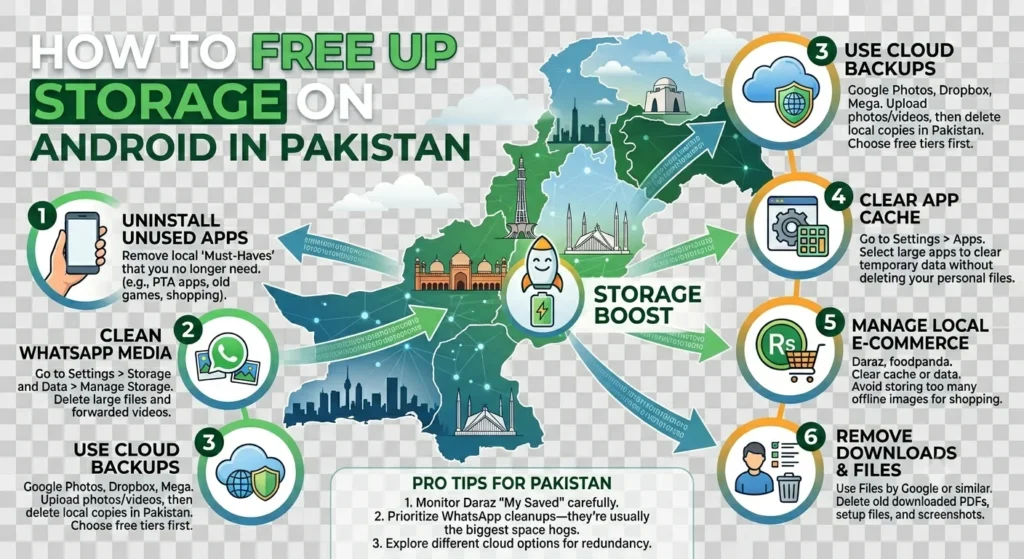
To clear cache for a single app, go to Settings > Apps, find the app you want to clean, tap Storage, then tap Clear Cache.
To clear cache for all apps at once, go to Settings > Storage > Cached Data and tap OK to clear everything. On some phones, this option appears as Free Up Space instead.
Apps that typically build the largest caches in Pakistan include YouTube, TikTok, Instagram, Chrome, Facebook, and Spotify. Clearing these regularly saves significant space.
Step 4 — Use Files by Google to Clean Junk
Files by Google is a free app that comes pre-installed on many Android phones. If your phone does not have it, download it from the Play Store for free. It is one of the most effective storage cleaning tools available.
Open the app and tap Clean from the main menu. Files by Google automatically scans your phone and shows you suggestions for what to delete junk files, duplicate photos, old screenshots, blurry images, large files you have not opened in months, and backed-up media that already exists in Google Photos. You can review each suggestion before deleting anything, so nothing important gets removed accidentally.
Most users recover between 1GB and 5GB of storage in a single cleaning session using Files by Google. It also helps you find and delete large downloaded files that you may have completely forgotten about.
Step 5 — Uninstall Apps You Do Not Use
Apps take up more storage than most people realise, not just their initial size, but also the data they accumulate over time. An app you downloaded months ago and never opened again could be taking up hundreds of megabytes, doing absolutely nothing.
Go to Settings > Apps and sort the list by size. Look at the biggest apps and ask yourself honestly, when did you last use this? If you have not opened an app in the past month, uninstall it. You can always reinstall it later from the Play Store if you need it again, and your account data will usually still be there.
Alternatively, use the Google Play Store’s built-in tool. Open the Play Store, tap your Profile photo > Manage apps and device > Manage, then sort by size to see your largest apps and identify ones worth removing.
Step 6 — Move Photos and Videos to Google Photos
Photos and videos are almost always the biggest storage consumers on any Android phone. Moving them to the cloud is the most effective way to free up large amounts of storage quickly.
Google Photos gives you free unlimited storage for photos up to 16 megapixels and videos up to 1080p quality. Install Google Photos, back up all your photos and videos to your Google account, and then use the Free Up Space option inside the app. This removes all locally stored photos and videos that have already been backed up, freeing up the space on your phone while keeping everything safely accessible in the cloud whenever you need it.
To access your backed-up photos, you just need an internet connection and your Google account. This works very well in Pakistan, where most users have access to Jazz, Zong, or Telenor mobile data throughout the day.
Step 7 — Delete Downloaded Files
Your Downloads folder quietly fills up with files you downloaded weeks or months ago and completely forgot about. PDFs, APK files, documents, compressed archives, these all sit in your Downloads folder, taking up space long after you needed them.
Open Files by Google or your phone’s built-in File Manager and go to the Downloads folder. Delete anything you no longer need. Be careful to review before deleting some downloaded files, like important documents or APKs you still use, which should be kept or moved to a safe location first.
Also, check other folders that commonly collect junk Telegram Downloads, browser download folders, and any folder named after a messaging app. These fill up fast on most Pakistani phones because of heavy group chat usage.
Step 8 — Use a File Manager App to Organise Storage
A good file manager app helps you see exactly what is on your phone and gives you full control over your files. The MIUI File Manager app works well for Xiaomi and Redmi phone users in Pakistan, which covers a large portion of Android users here. It shows file sizes clearly, lets you move files to the SD card easily, and includes a built-in cleaner for junk files.
ES File Explorer is another strong option that lets you browse all folders on your phone, find large files quickly, and manage everything from one place. Both apps are available on APKStick for direct APK download.
Step 9 — Move Files to SD Card
If your Android phone has a microSD card slot, which many budget and mid-range phones sold in Pakistan have. Moving photos, videos, downloaded files, and even some apps to the SD card frees up your internal storage significantly.
To move files, open your file manager, select the files you want to move, and choose Move to SD Card. For apps, go to Settings > Apps, select the app, tap Storage, and choose Change to move it to the SD card if the app supports it. Not all apps support being moved to an SD card, but many do.
Buying a 64GB or 128GB microSD card in Pakistan costs between Rs. 800 and Rs. 2,500, depending on the brand and speed class. This is one of the most cost-effective upgrades you can make to extend your phone’s usable life.
Step 10 — Use CCleaner to Automate Cleanup
CCleaner for Android is a powerful cleaning app that automates much of what we covered above. It clears junk files, app caches, residual files, and duplicate photos with one tap. It also shows you which apps are using the most storage and battery, making it easy to identify what to uninstall.
The free version of CCleaner covers all basic cleaning needs. You can download the CCleaner APK on APKStick and run a full cleanup in under two minutes. Setting up a regular weekly cleaning schedule inside CCleaner prevents storage from building up again over time.
How Much Free Storage Should You Always Keep?
Android needs free storage space to function properly. System updates, app updates, and temporary files all require available space. If your storage drops below 10% of your total capacity, you will start noticing slowdowns, failed updates, and apps crashing more frequently.
As a general rule, always try to keep at least 10 to 15 percent of your total storage free. On a 128GB phone, that means keeping at least 13 to 19GB free at all times. On a 64GB phone, keep at least 6 to 10GB free. Use the methods above to maintain this buffer and your phone will run noticeably faster and more reliably.
Quick Summary — How to Free Up Storage on Android in Pakistan
Here is a fast reference of everything covered in this guide:
| Method | Storage Recovered | Difficulty |
|---|---|---|
| Delete WhatsApp media | 1 to 10 GB | Easy |
| Clear app cache | 1 to 5 GB | Easy |
| Files by Google cleanup | 1 to 5 GB | Easy |
| Uninstall unused apps | 500 MB to 3 GB | Easy |
| Back up photos to Google Photos | 2 to 20 GB | Easy |
| Delete the Downloads folder | 500 MB to 2 GB | Easy |
| Move files to SD card | Varies | Medium |
| Use CCleaner | 500 MB to 2 GB | Easy |
Conclusion
Learning how to free up storage on Android in Pakistan does not require any technical skills or paid apps. Start by checking your storage breakdown in Settings, then work through the list clear WhatsApp media, clear app cache, use Files by Google, delete unused apps, and back up your photos to Google Photos. These steps alone can recover 5 to 20 gigabytes on most phones within half an hour.
For long-term storage health, use CCleaner weekly, keep WhatsApp auto-download turned off, and move photos to the SD card regularly. Your phone will run faster, update properly, and never show that frustrating storage full notification again.
Frequently Asked Questions
Clear your app cache, use Files by Google to remove junk files, and back up your photos to Google Photos, then remove local copies. None of these steps deletes any important personal data.
Android needs a minimum of 10 to 15 percent free storage to function properly. Even if your phone shows a few gigabytes free, the system may still flag storage as insufficient for certain operations.
No. Clearing the cache only removes temporary files that apps create for faster loading. Your photos, messages, contacts, and app settings remain completely untouched.
WhatsApp, TikTok, Instagram, YouTube, Facebook, and Chrome typically consume the most storage on Pakistani phones due to heavy daily use and automatic media saving.
Yes. CCleaner is a trusted app developed by Piriform and available on the Google Play Store. It only removes junk files and cached data, not personal files or app data.
Backing up your photos to Google Photos and then deleting local copies is the fastest way to recover large amounts of storage, often 5 to 15 gigabytes in just a few minutes.

APKStick Team
The APKStick Team consists of dedicated Android gaming enthusiasts based in Pakistan who personally test, install, and review every APK before publishing. With years of hands-on experience in mobile gaming and earning apps, we aim to provide safe, verified, and up-to-date APK downloads for Pakistani users. Every app reviewed on APKStick is manually tested on real Android devices to ensure it works, pays, and is free from malware.
Download links
Click the above button to download the game.
Download your game by clicking the button below.